Download Jeetbuzz for PC Windows and MacOS

The desktop application brings live casino games, roulette, slots, and sports betting directly to your computer. It supports both Windows and macOS systems and is completely free to download. You get the same functionality as the web platform, but with faster loading times and a distraction-free full-screen interface.

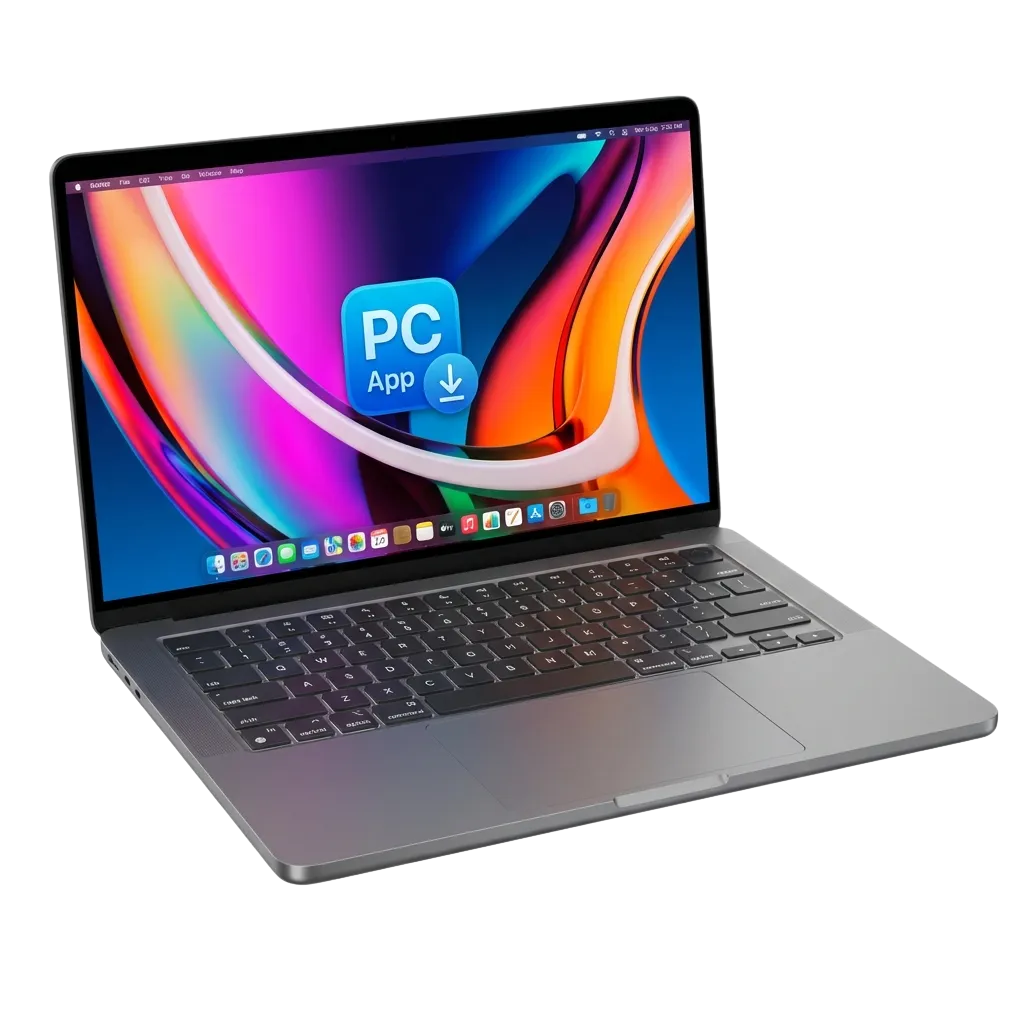
Jeetbuzz desktop app icon displaying casino games and sports betting features for Windows and macOS computers

Jeetbuzz PC Client Review

The desktop client delivers faster game loading, stable connections during live betting, and a dedicated environment free from browser distractions. Below is a summary of the key details:

PC Client Size

85 MB

Available Languages

English, Hindi, Bengali, Telugu, Tamil

Category

Sports Betting, Online Casino, Live Casino, Slots, Table Games, Instant Games

Compatible with Windows

Windows 7, Windows 8, Windows 10, Windows 11

Compatible with macOS

macOS 10.12 and above

Pros and Cons of Using Jeetbuzz PC

Installing the desktop application offers several advantages over browser-based play, though there are a few minor considerations. Here is a comparison:

Pros Cons
Faster game loading and smoother performance Requires installation and storage space
Full-screen mode without browser toolbars Updates must be installed manually
Stable connection during live betting sessions Not portable like mobile apps
Dedicated interface free from browser tabs
Quick access via desktop icon
Better resource management on your computer
Fewer interruptions from browser notifications

Download and Install the Jeetbuzz App on Windows

The Windows application works on all versions from Windows 7 onwards and requires minimal system resources. The installation process takes just a few minutes.

Step 1

Access the download option

Click the button below to view the download section on this website.
Step 2

Download the installer file

Select the Windows version and save the installer file to your computer.

Step 3

Run the installer

Open the downloaded file and follow the on-screen instructions to complete the installation.

Step 4

Launch the application

Once installed, open the app from your desktop icon and log in to start betting.

The setup process is straightforward and requires no technical knowledge.

Start using!

Download and Install the Jeetbuzz App on Mac

The Mac application is compatible with macOS 10.12 and newer versions. Installation follows standard Mac procedures.

Step 1

Navigate to the download area

Click the button below to access the download page on this website.

Step 2

Download the Mac installer

Select the macOS version and download the installation package.

Step 3

Install the application

Open the downloaded file and drag the app icon to your Applications folder.

Step 4

Open and verify

Launch the app from Applications, allow necessary permissions if prompted, and log in to your account.

Mac users can start placing bets immediately after installation.

Start using!

Update the PC Client

Regular updates improve security, add new features, and fix bugs. The update process is simple and takes only a few minutes.

Step 1

Open the application

Click the desktop icon to launch the PC client.

Step 2

Check for updates

Look for an update notification inside the app or navigate to the settings menu.

Step 3

Download and install

If an update is available, click the update option and wait for the process to complete.

Step 4

Restart the application

Close and reopen the app to use the latest version.

Keeping your client updated ensures optimal performance during betting and gaming sessions.

Register and Start Betting with the PC App

Creating an account through the desktop application gives you access to welcome offers, live casino games, and sports betting markets. Registration takes less than five minutes.

Step 1

Open the application

Launch the PC client from your desktop.

Step 2

Click the registration option

Select the sign-up option and choose your preferred method: email, phone number, or social media login.

Step 3

Fill in your details

Enter the required information including your name, date of birth, and contact details.

Step 4

Complete verification

Verify your account through the confirmation link or code sent to your email or phone, then log in to start placing bets.

Once registered, you can deposit funds and explore all available betting options directly from your computer.

Play on the Jeetbuzz Official Website

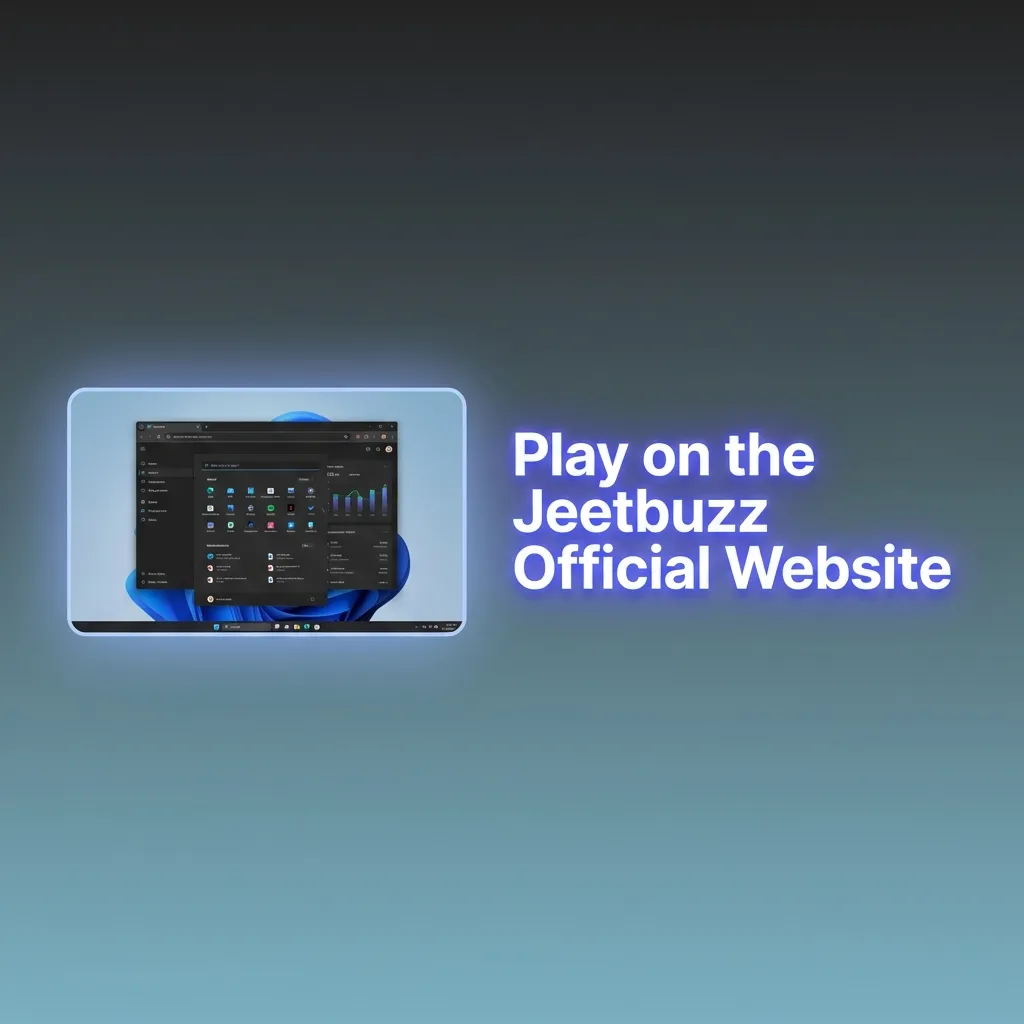
You do not need to install the PC application to enjoy the full betting and casino experience. The official website provides access to all features, games, and betting markets without requiring any downloads. If you prefer not to install software on your computer, simply visit the website through your browser. You can place bets, play casino games, and manage your account directly online with the same functionality as the desktop client.

Player placing bets on Jeetbuzz website through browser without downloading software

Support for Desktop Users

Customer support is available 24/7 for all desktop users who need help with installation, account issues, or betting queries. You can reach the support team through multiple channels:

Contact Method Details
Live Chat Available 24/7 inside the application and on the official website
Email [email protected] (response within 24 hours)
Phone +91-XXXX-XXXXXX (available during business hours)
Social Media Facebook, Twitter, Telegram (direct messaging available)

The support team can assist with technical issues, payment queries, and account verification for desktop users.

Customer support contact methods table showing 24/7 live chat, email, phone, and social media options for desktop users

FAQ

Can I use the same account on both PC and mobile?

Yes, your account works across all platforms. Log in using the same credentials on your computer, mobile device, or browser.

Is the download for PC free?

Yes, downloading and installing the application is completely free. You only need to deposit funds to start betting.

How much space does the application require on my computer?

The installer is approximately 85 MB, and the installed application takes up around 150 MB of storage space.

Can I play casino games offline after downloading the app?

No, an active internet connection is required to access live casino games, sports betting, and account features.

What should I do if the application crashes or freezes?

Restart the application first. If the issue continues, uninstall and reinstall the latest version from this website. Contact customer support if problems persist.

Updated: